Most fix-it scripts will require you to SSH into the Pi to run one or more commands, this document provides the instructions for how to start SSH. SSH is a command line utility, and our fix-it scripts will be the exact commands you need unless you have difference in username, machine name, or if you need to use an IP address.
If you are working directly on the Pi (for example with a keyboard, mouse, and monitor, or in the Pi's desktop session), open a terminal on the Pi and run the fix-it commands there. You do not need SSH in that situation; SSH is only for connecting to the Pi from another machine.
It is strongly recommend to do this setup on a full size computer (desktop or laptop), not a phone or tablet. It may be possible, but will likely require a lot of switching between apps and be a painful experience.
Only the first step of getting a Terminal Window or Command Prompt open is different for Mac and Windows, after that it's the same.
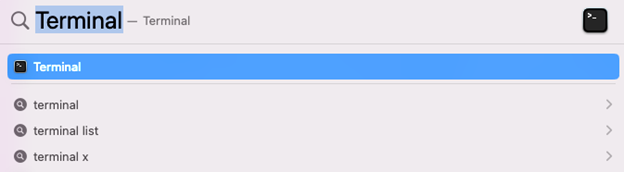
Use the magnifying glass in the toolbar and type Terminal and click the entry.
Open the Start Menu, type cmd and click the option for Command Prompt.
There are too many flavors here and if you are using Linux you probably don't need help here. If you do, contact us and we will do our best.
These screenshots are done on a Mac, it will look almost identical on Windows & Linux except for a black background with white text rather than Mac's white background with black text. Other documents are likely done on a Windows computer and will show as black background with white text.
When that window comes up, enter the command below and press [Enter]. If you have a different username or machine name you will need to modify the command. In this command, genmonpi is the username and genmon is the machine name.
ssh genmonpi@genmonFor pre-loaded images, genmonpi is the username and genmon is the Pi's computer name, if you built your own they will be different, these are referring to the system login not the login for genmon's web interface. The default for Raspberry Pi installer used to be pi and raspberry but their newest installer has you choose during setup. If you built your own or changed your password use the values that are correct for your environment.
You may be prompted with a few lines that asks you "Are you sure you want to continue connecting (yes/no/[fingerprint])?" Type yes and hit enter. Typing all 3 characters is required.
At the password prompt enter your password for the Pi, by default on preloaded systems this is raspberry, if you have changed it or built your own system adjust accordingly. Note: many applications will not show anything as you type the password, not even **** as a way of increasing security so that someone can't even see how many characters your password is. This is normal and not a sign of a problem. Just type your password and hit [Enter]. The
Mini2014:~ jon$at the start is going to be different for nearlhy every machine.

After logging in you now are connected to the Pi and entering commands into its operating system.
When you are finished, you can exit the SSH session by entering the command exit and pressing [Enter].
You can also close the Terminal or Command Prompt window to end the SSH session.
You can now proceed with the desired fix-it script.