Log into your Pi via SSH or with a keyboard and monitor.
If you use keyboard and monitor, you will need to open a terminal window to execute the commands below.
If you prefer to use SSH and need help, see our SSH Instructions.
First, we need to change to the genmon directory and stop Genmon, then we will change to the OtherApps directory.
cd genmon
./startgenmon.sh stop
cd OtherApps
Now we will run the loopback test, but depending on your hardware the commands differ a bit, we are only dealing with direct connections, not serial-TCP connections.
If you have a HAT or pHAT, you will need to use the following command:
python serialtest.pyIf you have a USB adapter, you will need to use the following command:
python serialtest.py /dev/ttyUSB0The output should look like this:
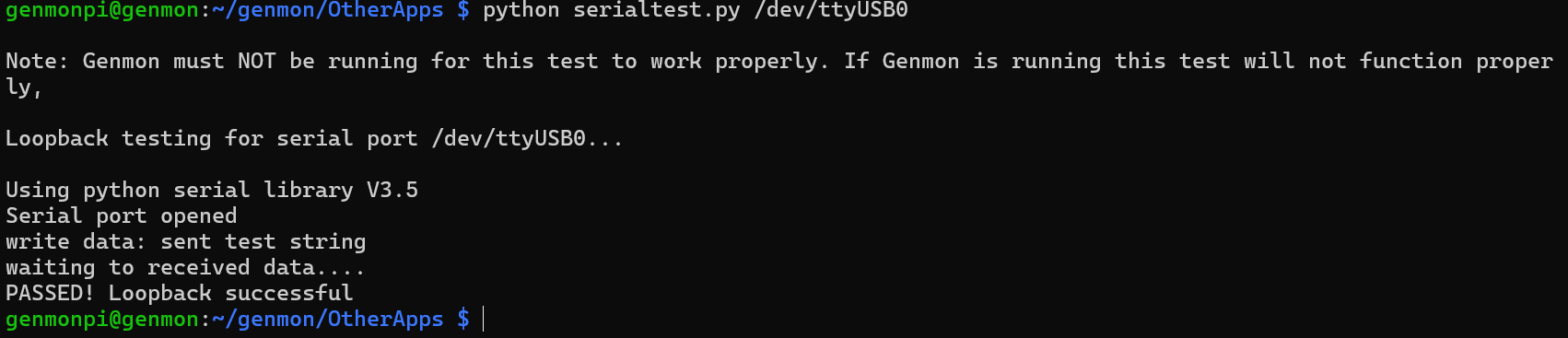
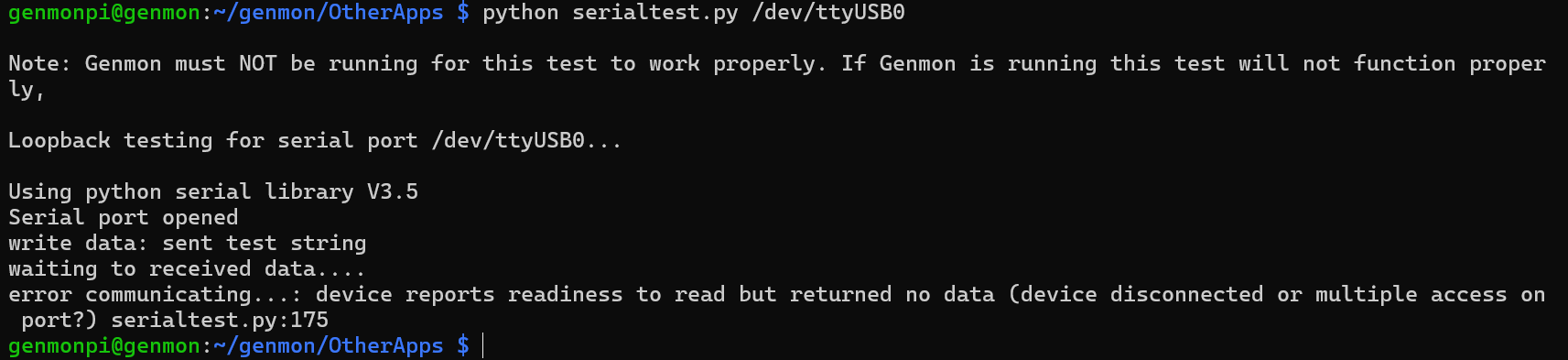
If you see the output above, you are good to go. If you see an error, you most likely missed stopping Genmon or didn't connect the loopback tester.
If you did not stop genmon you will see an error like this:
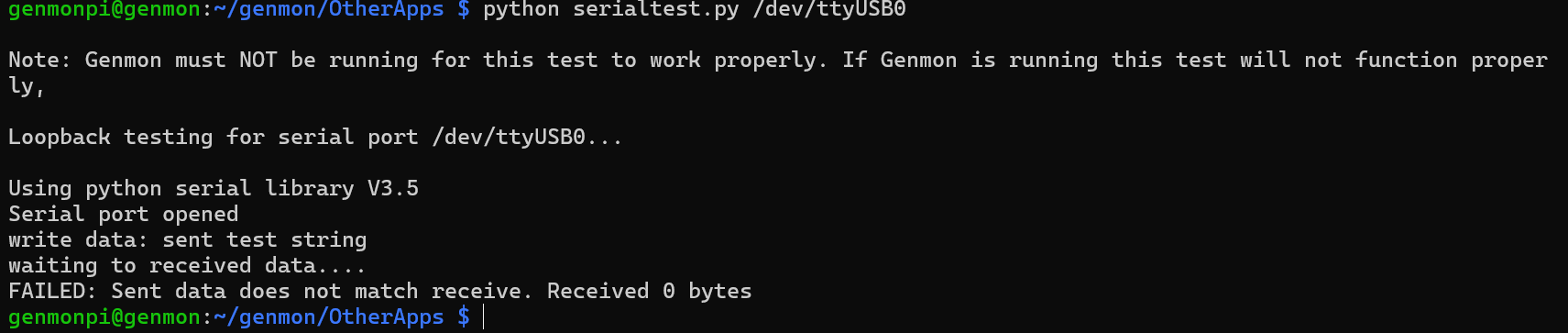
If you did not connect the loopback tester correctly, or if there is a hardware failure, you will see an error like this:
If you need help, reach out to us and we will help you troubleshoot.
If you are done with testing you can start genmon back up, or skip this if you are just going to shut down anyway.
cd ..
./startgenmon.sh start
If you want to exit SSH or the terminal window, you can use the exit command.
If you want to shut down the Pi, run:
sudo shutdown -h nowspan>